Planning guide
How to plan a straight line mission
Build a reference line, investigate its surroundings and prepare a GPX handoff.
A straight line mission starts with a fixed line between two endpoints. Straight Line Planner helps you inspect that line before heading outside. This guide uses an illustrative Swedish forest example, not a route recommendation.
1. Choose your start and finish
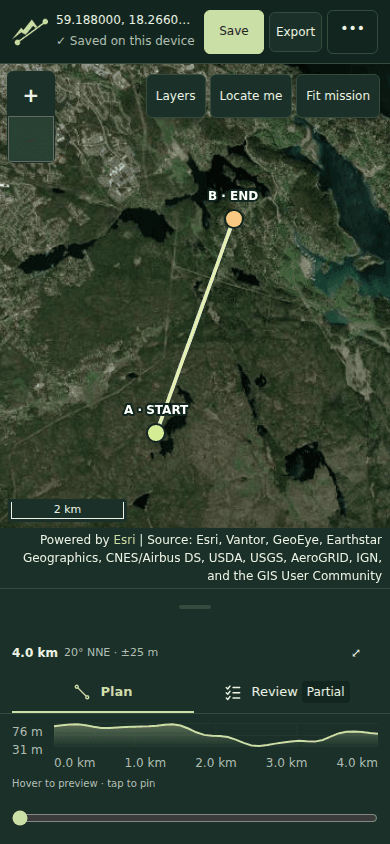
Use the Plan tab to search for a place, enter endpoint coordinates or choose each endpoint on the map. Check that the points are where you intend them to be. Move an endpoint to compare another candidate line.
The line is a reference track: it does not snap to roads or find a walkable route. A short initial example makes it easier to learn the controls before investigating a larger mission.
2. Inspect the terrain
Review the elevation profile to identify changes in height and estimated grade along the line. Use Layers to compare available maps, imagery and terrain shading. Zoom in on places that need closer investigation.
Elevation samples and imagery can miss small features or reflect older conditions. The profile describes grade along the line; slope shading describes the hillside surface. Neither proves a section is passable.
3. Review potential obstacles
Open Review, expand Potential obstacles and choose Find potential obstacles to check this route using OpenStreetMap. Use the filters and obstacle visibility controls to focus your review, then compare the results with the map. An empty obstacle list means none were found by this analysis, not that the line is clear.
Obstacle analysis checks long lines in sections and shows how much of the mission has been checked. Closing the page pauses analysis; reopen the same mission and choose Find potential obstacles to resume recent results stored on this device. Detailed elevation is limited to 200 km. You can still choose endpoints, inspect maps and export the reference line.
4. Add checkpoints and notes
Add checkpoints from a finding or the Checkpoints section in Review. Add notes and use review status to keep track of your decisions. Save the mission to your account if you want to return to it. Before sharing, review which checkpoints and notes you have explicitly marked for publication.
5. Export the straight line GPX track
Choose Export in the header, then Download GPX. The file includes the fixed reference track, endpoints and checkpoints. Open it in a compatible phone app or GPS and check that the displayed endpoints and line match your plan.
6. Prepare your phone map
The GPX and phone export guide describes importing the track into OsmAnd. Preserve the imported track geometry rather than recalculating it as a road or walking route. Download the maps you need, then check the imported track and checkpoints with the phone offline.
Straight Line itself is a browser planning tool. Its foreground location feature does not record an attempt or provide reliable offline/background navigation.
Review access and conditions separately
A map line, terrain estimate or obstacle result does not grant access permission or establish a safe route. Investigate land access, local restrictions and current conditions independently. See data sources and limitations for what the planner uses.